
public:cb_mirror:zulip_mobile_app_navigational_tour_pdf_files_28448
To view this on the COS website, click here zulip-mobile-app-navigational-tour
To download the pdf file from the COS website, click here Zulip-App-Tour.pdf
Zulip Mobile App Navigational Tour
Attachment: 4614/Zulip-App-Tour.pdf
 Contents: Home Page & Views – page 2 Working with Zulip Posts – page 3 Creating Zulip Posts – page 4 Channel & Topic Headers – page 5 Channel View – page 6 Direct Message View – page 7 Settings View – pages 7-8 Zulip Mobile App Navigational Tour This document highlights several, but not all, of the basic ways to get around and do things with Zulip. As you use Zulip, you will discover more and more of the robust and varied features the app has to offer. Recommendation: Read the navigational tour for the Zulip Desktop App & Web prior to reading this document and using the mobile app. 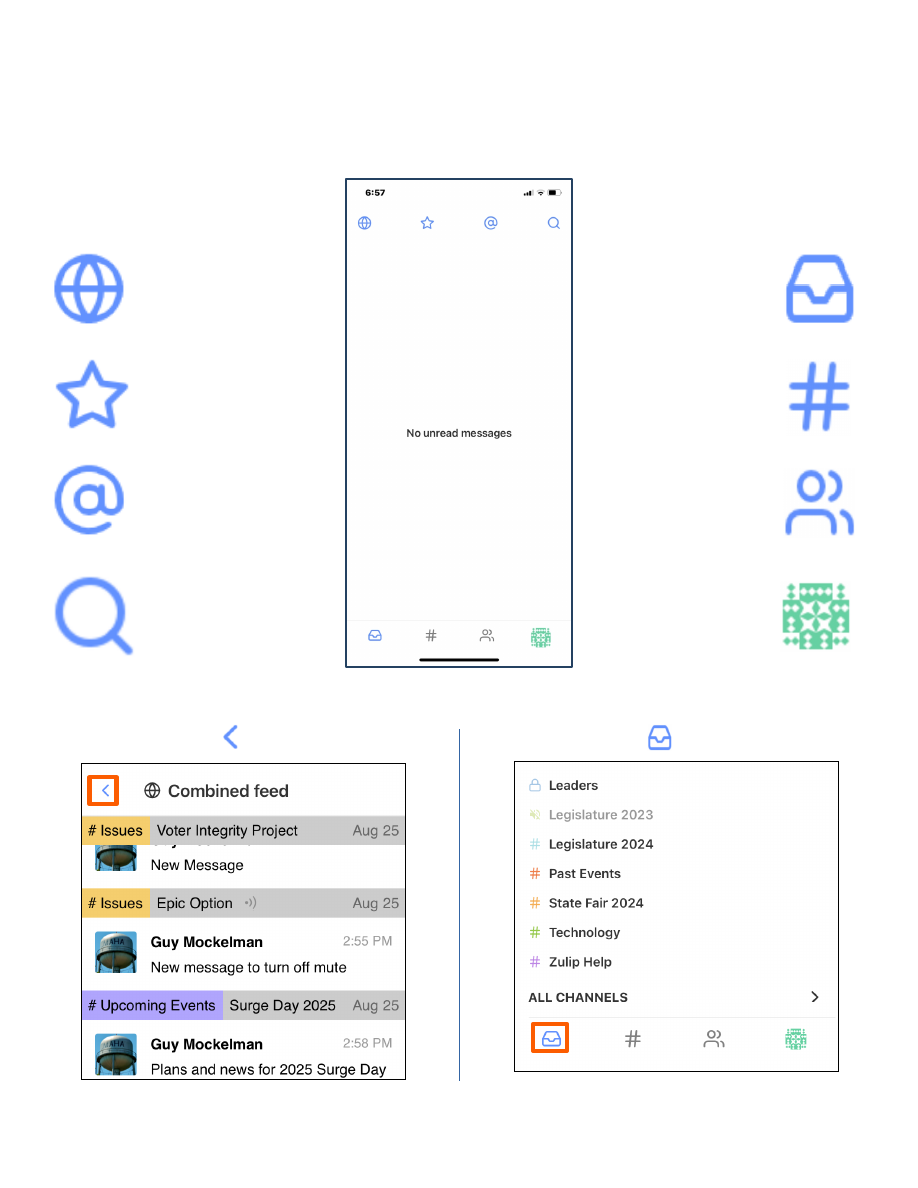 The Inbox view displays unread messages Combined Feed This view displays all messages This view displays messages that @Mention you This view displays your starred (favorited) Messages This view displays Channels This view displays Direct Messages Routes to Settings & Organization Switcher This view displays Search Top Row Icons Bottom Row Icons Home Page & Views Navigation icons for Views are at top and bottom of Home Page Return to Home Page via icon Return to Home Page via icon 2  Working with Zulip Posts Working with posts is similar across the various Views accessed from the Home Page. The Combined feed view serves as an example below. Zulip posts are organized by Channels . Channels are further organized by Topics . Tapping Channel in the header shows all Topics and Posts in the channel. 3 Each Zulip post has a header with two components: channel (left) and topic (right). Here # Issues is the Channel and Epic Option is the Topic . Tapping Topic in the header shows all Posts within the topic. Note how the Topic Epic Option is identified in Channel header. 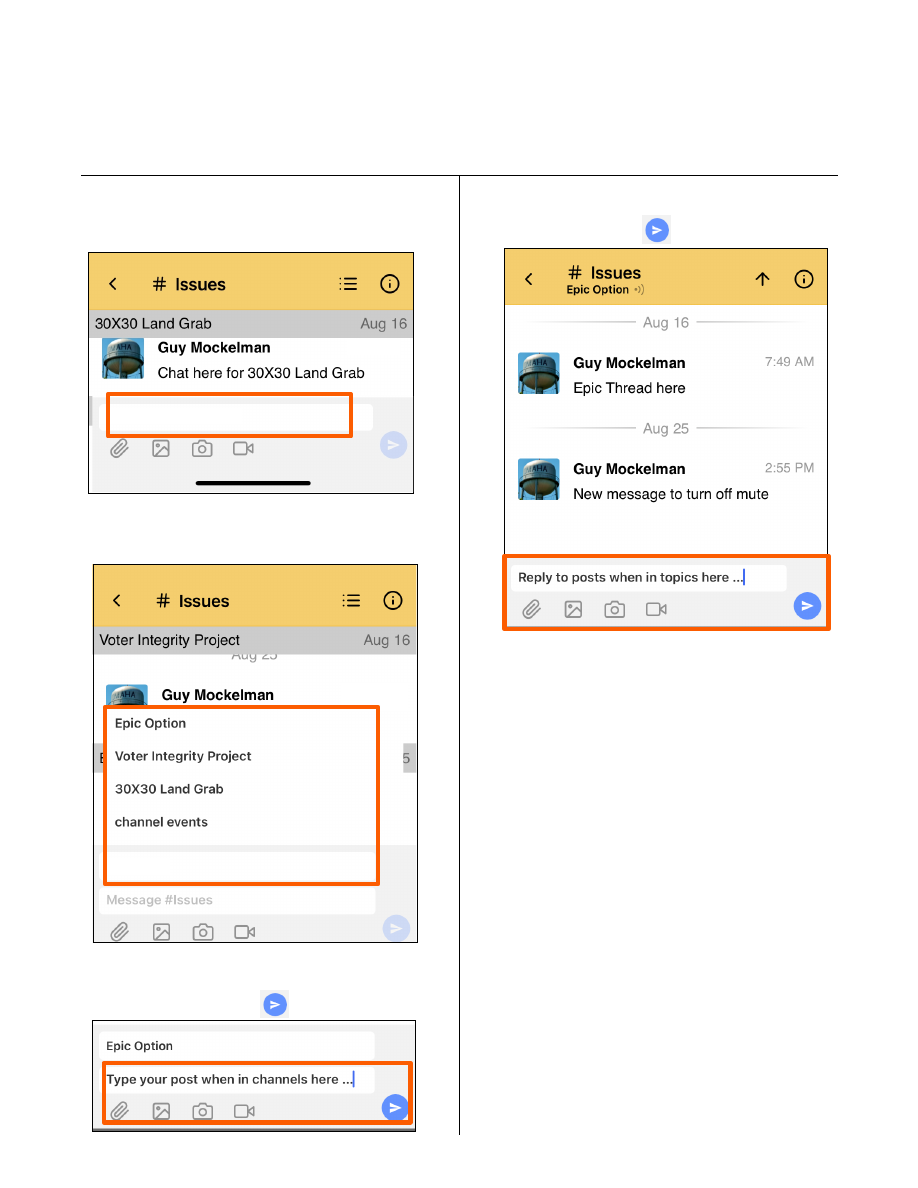 Creating Zulip Posts 1. Place cursor in message pane at bottom of screen 4 Reply or Create from Channel Reply from Topic Type your reply, use the ribbon as needed and tap to send. 2. Choose from Topic List or type in new topic Place cursor here … Select from above or type new topic here 3. Type your post, use the ribbon as needed and tap to send. 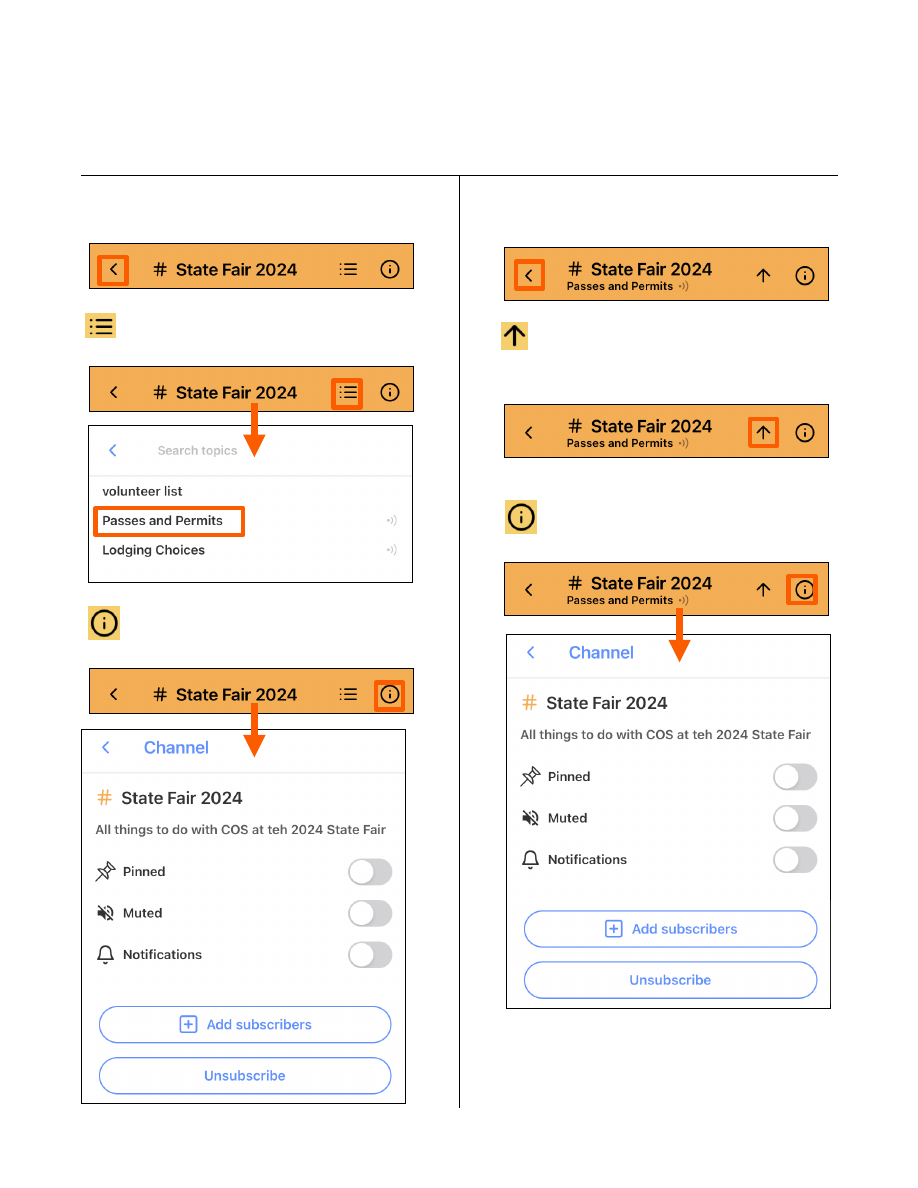 Channel & Topic Headers The back arrow goes to previous screen. 5 Channel Controls & Settings Topic Controls & Settings Lists all topics in Channel and allows switching between them The back arrow goes to previous screen. Displays Settings for the Channel Moves back up to Channel showing all Topics and Posts in Channel. Lists all topics in Channel and allows switching between them Again displays Settings for the Channel 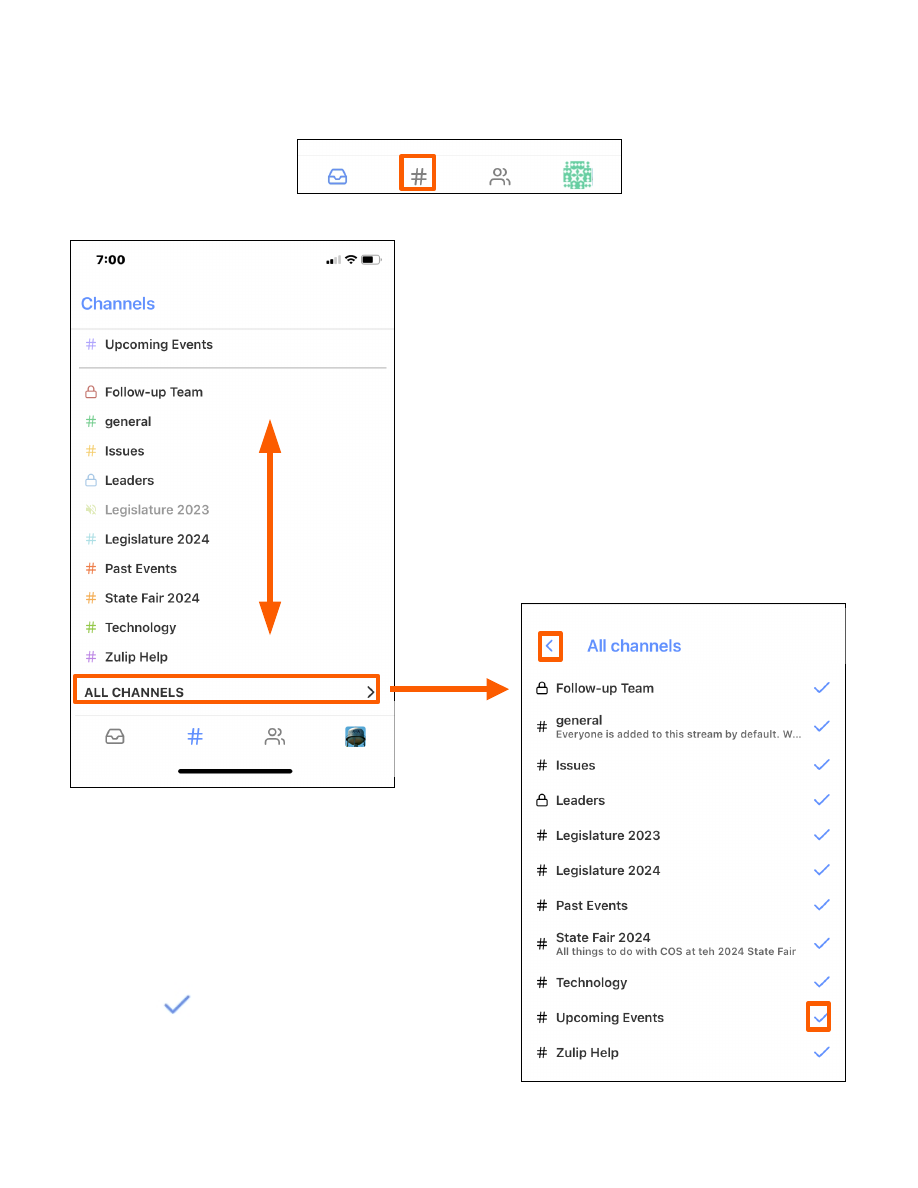 Channel View Access the Channel View from the bottom of the Home Page 6 Choose and switch between subscribed Channels to go to each channel’s live feed of all its topics and posts. Tap any Channel here to toggle between Subscribe and Unsubscribe . Indicates the Channel is currently Subscribed . The back arrow routes back to the Channel View.  Direct Message View Access the Direct Message View from the bottom of the Home Page 7 To initiate and send a Direct Message to a new person or a new group click on either New DM or New group DM. Or tap on their name in the list if you’ve sent them a Direct Message recently. Settings View Access the Settings View from the bottom of the Home Page Select Set your status to display values such as Busy, In a Meeting, Vacationing , etc. Turn on Invisible Mode so others cannot see when you’re online with Zulip.  Settings View (continued) 8 Behind the Settings button, the Night Mode theme and Open links with in-app browser can be toggled on and off. Preferences for Mark messages as read and Notifications can be modified here. Tap the Switch Accounts button to add or switch between Accounts . Zulip also refers to Accounts as Organizations . Accounts/ Organizations are analogous to Slack Workspaces. Note that the green checkmark denotes the account you’re currently logged into. —- ====== Document Outline ====== * Slide_1 * page1 * Slide 3 * Slide 4 * Slide 5 * Slide 6 * Slide 7 * Slide 8 |
| Page Metadata | |
| Login Required to view? | No |
| Created: | 2025-02-25 18:37 GMT |
| Updated: | 2025-02-26 02:57 GMT |
| Published: | 2025-02-26 02:57 GMT |
| Converted: | 2025-11-11 12:35 GMT |
| Change Author: | Bud Cornwell |
| Credit Author: | |
public/cb_mirror/zulip_mobile_app_navigational_tour_pdf_files_28448.txt · Last modified: 2025/11/11 12:35 by 127.0.0.1