
To view this on the COS website, click here zulip-desktop-app-web-navigational-tour-1
To download the pdf file from the COS website, click here Zulip_Desktop_Tour_Generic.pdf
Zulip Desktop App & Web Navigational Tour
Attachment: 4613/ZulipDesktopTourGeneric.pdf
|

Contents:
Left Sidebar –
pages 2-5
Right Sidebar –
page 6
Center Information Panel –
pages 7-8
Composition Box for Composing Content –
pages 9-11
Far-Left Sidebar –
page 12
Settings in Upper Right Corner –
pages 13
Zulip Desktop App & Web
Navigational Tour
This document highlights several, but not all, of the basic
ways to get around and do things with Zulip. As you use
Zulip, you will discover more and more of the robust and
varied features it has to offer.

Clicking the
menu icon
toggles the
sidebar on and
off.
Left Sidebar:
Zulip Desktop App & Web Navigational Tour
2

Views
is the first section
in the Left Sidebar.
This displays
Recent
Conversations
to the right
in the center panel.
This displays your
Inbox
(unread messages).
This displays a
Combined
Feed
of all your messages.
This displays messages
that
@Mentioned
you.
This displays messages
you have
Starred
to the
right in the center panel.
Behind this icon is the
option to display messages
that have received
Reactions
or
Drafts
you
haven’t completed.
Zulip Desktop App & Web Navigational Tour
3

Clicking
Views
expands the menu for
an alternate look.
Clicking
Views
again,
toggles back to the
original look.
Moving down the Left Sidebar Navigation
Menu,
Direct Messages
appear next.
Clicking any entry will
display its messages
to the right.
Clicking on the
Direct
Messages
header
collapses and expands
this section.
Zulip Desktop App & Web Navigational Tour
4

The
filter
icon
toggles
on and off a filter to
quickly find your
desired channel.
Further down the left sidebar is the
Channels
section which contains messages and
information organized by channel.
Clicking on any entry
will display its content
to the right in the
center panel.
Mousing-over entries displays settings controls. Clicking on displays
more settings for allowing, muting or following the topics, etc.
Zulip Desktop App & Web Navigational Tour
5
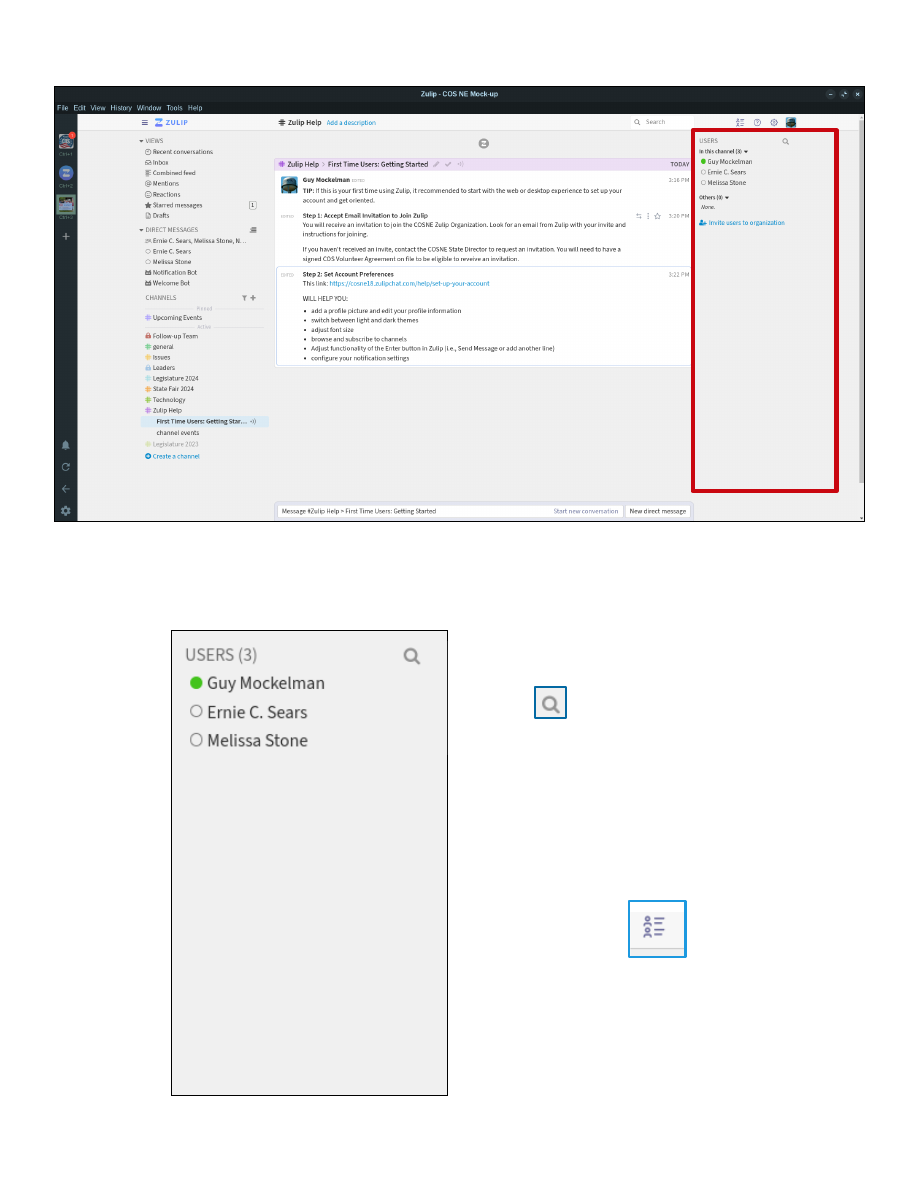
Clicking the
icon just above the
right sidebar toggles
it on and off.
Clicking on any entry
will display messages
and content with that
user or users to the left
in the center panel.
Right Sidebar Menu:
Zulip Desktop App & Web Navigational Tour
Search your list of
users by clicking on
the .
6
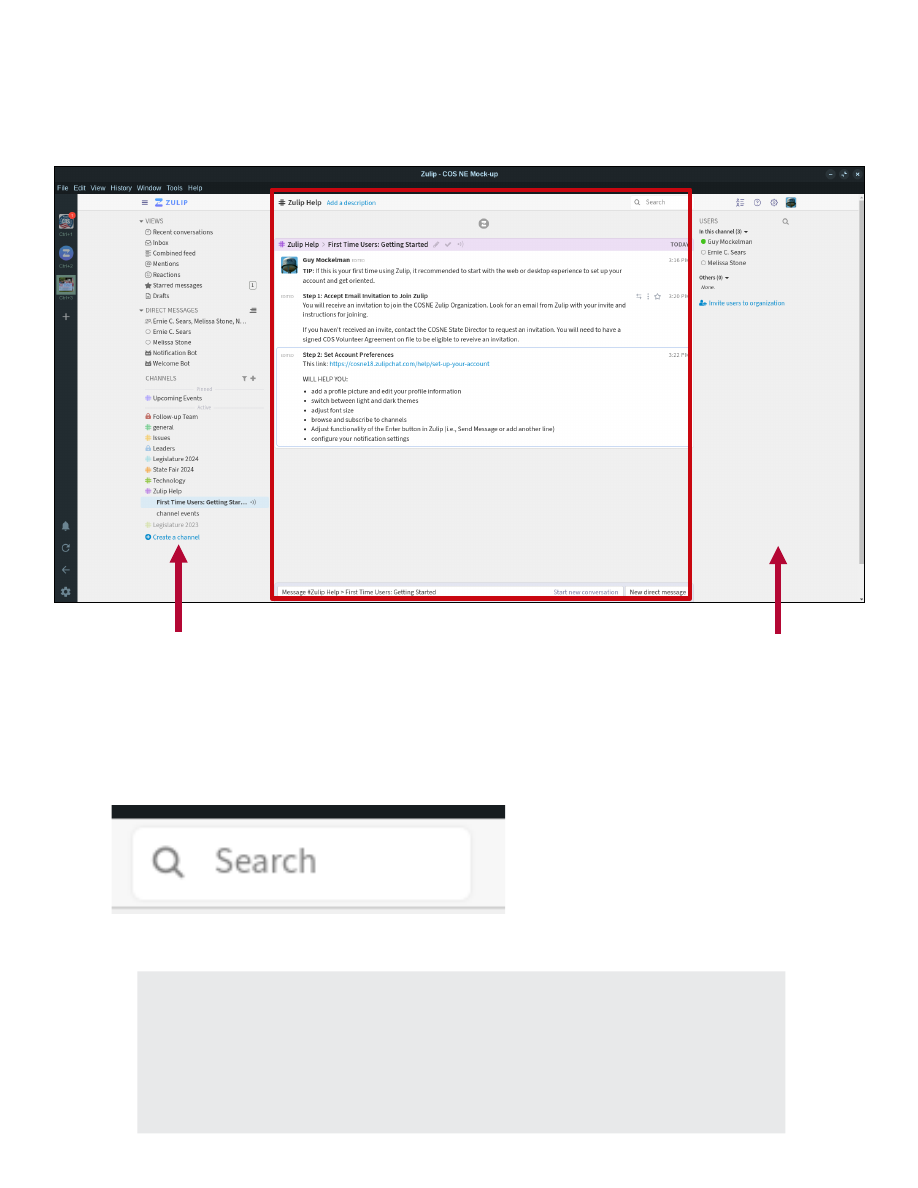
Center Information Panel:
Zulip Desktop App & Web Navigational Tour
As you select entries from
the
Left Sidebar
, the
content of your choices
display in the center panel:
As you select entries
from the
Right Sidebar
,
the content of your
choices display in the
center panel:
Click on some choices in each sidebar and
compare how the information in the center
panel displays. Try Search too.
1
1
Zulip has a very rubust
Search
engine in
addition to the left and
right sidebars.
7

Zulip Desktop App & Web Navigational Tour
Center Information Panel:
1
2
3
Creating or Replying to Information Items
Click in any message or post (like
1
and
2
above) or click in the
Composition Box itself at the bottom of the center panel (like
3
above) to
expand the
Composition Box
for creating or replying to posts, direct
messages and conversations.
Composition Box:
8

Zulip Desktop App & Web Navigational Tour
Composition Box for Composing Content:
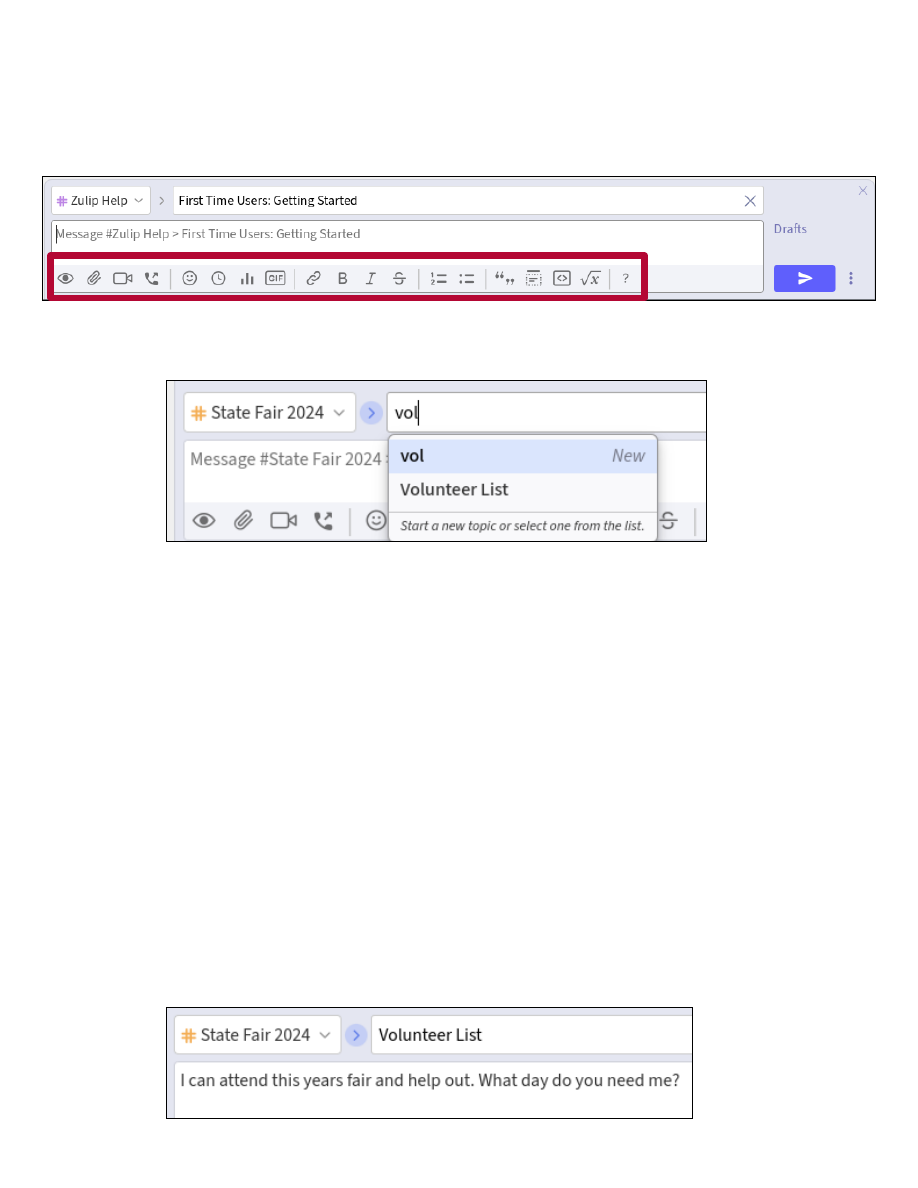
Zulip provides multiple ways to do most tasks and processes. This section
covers the basics for creating and replying to content.
1
2
6 5
4
3
}
1
Click the
drop-down
in the
Channel
field in the upper right
of the box (the field may be
populated with a previous value).
Then scroll-down and select
Direct message
if you want to
send a direct message to
someone. Or scroll further down
to choose to make a post to one
of the various
channels
.
NOTE:
Our example will
continue with showing the steps
for posting to a channel and
topic. Composing a Direct
Message follows a parallel
process.
1
Choose Channel
7
9
Zulip Desktop App & Web Navigational Tour
Composition Box for Composing Content:
1
2
6 5
4
3
2
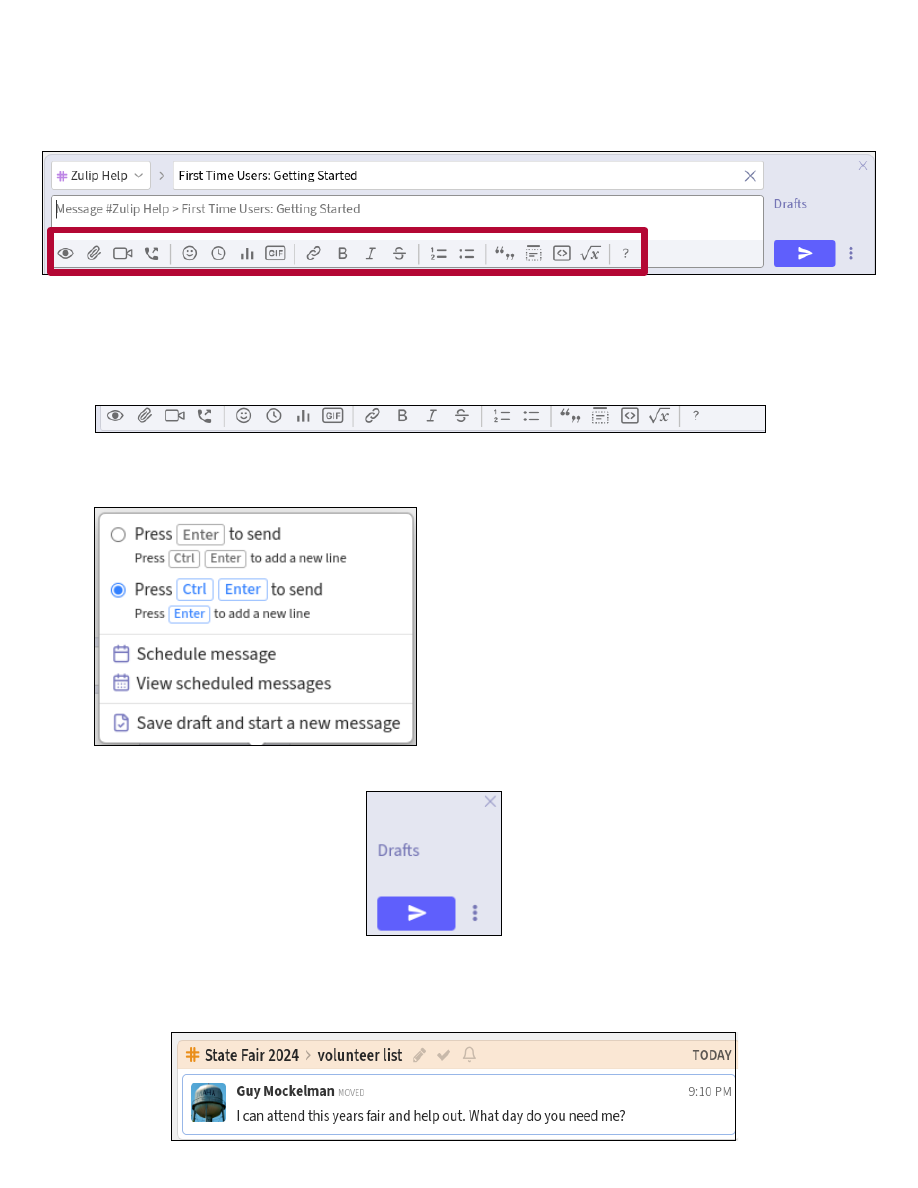
If the desired topic is already in the
Topic
field, simply
move to Step 3.
If you need to switch to a different topic that already
exists in the channel, remove the old value and then
start typing the topic name. Choose it from the
suggested results once it appears.
If creating a new topic in the channel, remove the old
Topic name, type new topic name and hit Enter.
NOTE:
Zulip Topics are a feature enhancement over
Slack. By using topics in conjunction with channels,
organization is enhanced with Zulip.
2
Choose Topic
3
Compose Message
3
7
10
Zulip Desktop App & Web Navigational Tour
Composition Box for Composing Content:
1
2
6 5
4
3
If needed, use ribbon to add attachments, GIFs, links,
emoticons, formatting and other options.
6
Send Button
5
Optional: Scheduled Send / Drafts
4
Use Ribbon Options
Content may be scheduled for
posting later as well as immediately.
Incomplete posts can be saved as
drafts and completed later.
The functionality of the Enter key
can also be controlled here.
7
7
Drafts Button
When post is edited
and ready, click Send.
Click Drafts to retrieve
draft messages for further
editing.
Finished Post in Chosen Channel & Topic
11

Far-left Sidebar (Desktop Version Only)
Organization Chooser
(Organization is Zulip’s term that’s comparable to Slack Workspace.)
Connect to additional Organizations
Do Not Disturb
Reload Zulip page
Go Back to Previous Page
Settings
Zulip Desktop App & Web Navigational Tour
12
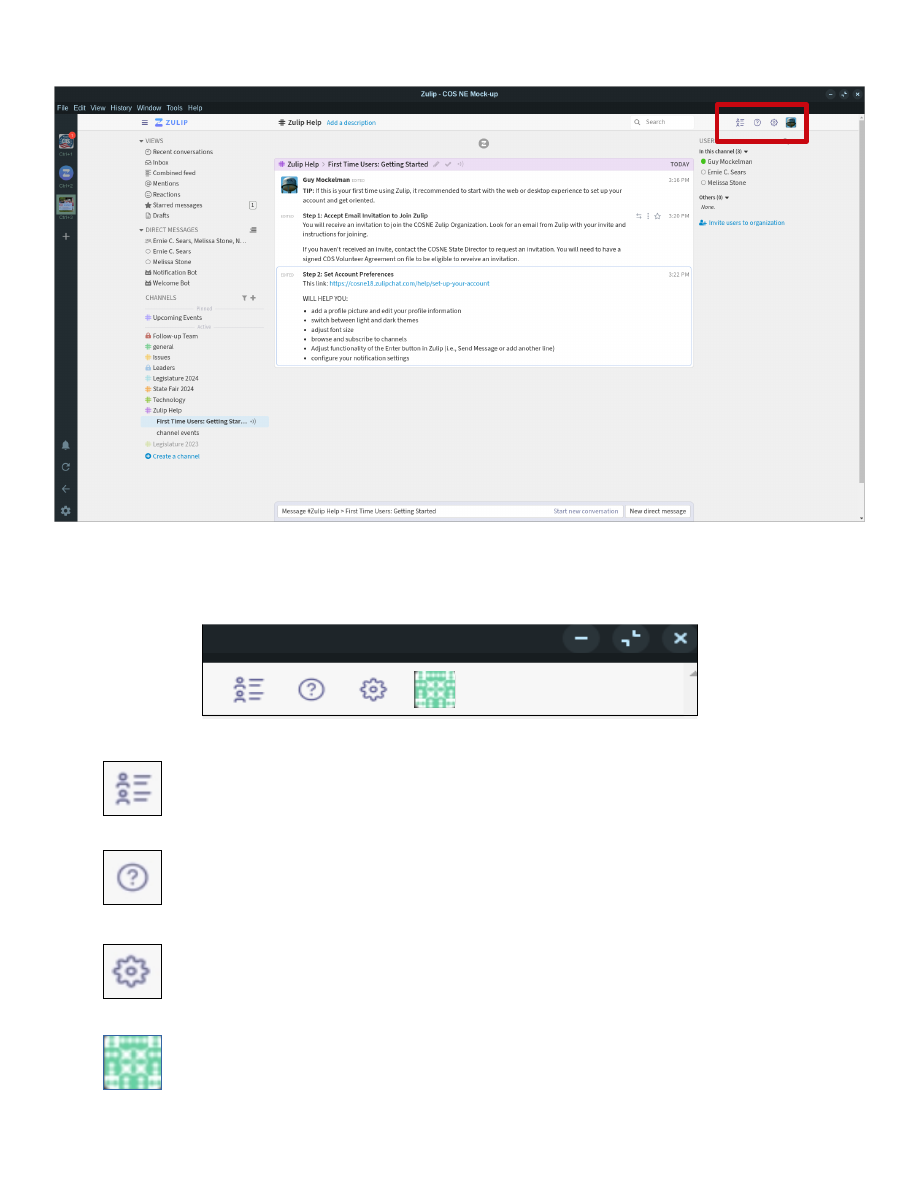
Upper Right Settings
Zulip Desktop App & Web Navigational Tour
Click this to toggle the Right Sidebar on and off.
Click this to view Zulip’s Help Center and related
information.
Click this to view and adjust personal settings, account
information, preferences, profile information, etc.
View and adjust dark/light mode settings, profile settings,
status settings, load a profile picture, etc.
13
—-
====== Document Outline ======
* Slide 1
* Slide 2
* Slide 3
* Slide 4
* Slide 5
* Slide 6
* Slide 7
* Slide 8
* Slide 9
* Slide 10
* Slide 11
* Slide 12
* Slide 13|
—-
| Page Metadata ||
|Login Required to view? |No |
|Created: |2025-02-25 18:36 GMT|
|Updated: |2025-02-26 02:57 GMT|
|Published: |2025-02-26 02:57 GMT|
|Converted: |2025-11-11 12:35 GMT|
|Change Author: |Bud Cornwell |
|Credit Author: | |