To view this on the COS website, click here telepatriot-walkthrough-android
To download the pdf file from the COS website, click here Convention_of_States_TelePatriot_for_android.pdf
TelePatriot Walkthrough (Android)
Attachment: 3105/ConventionofStatesTelePatriotforandroid.pdf
|

Android Edition
Convention of States
TelePatriot
The Call that Helps Save the Country
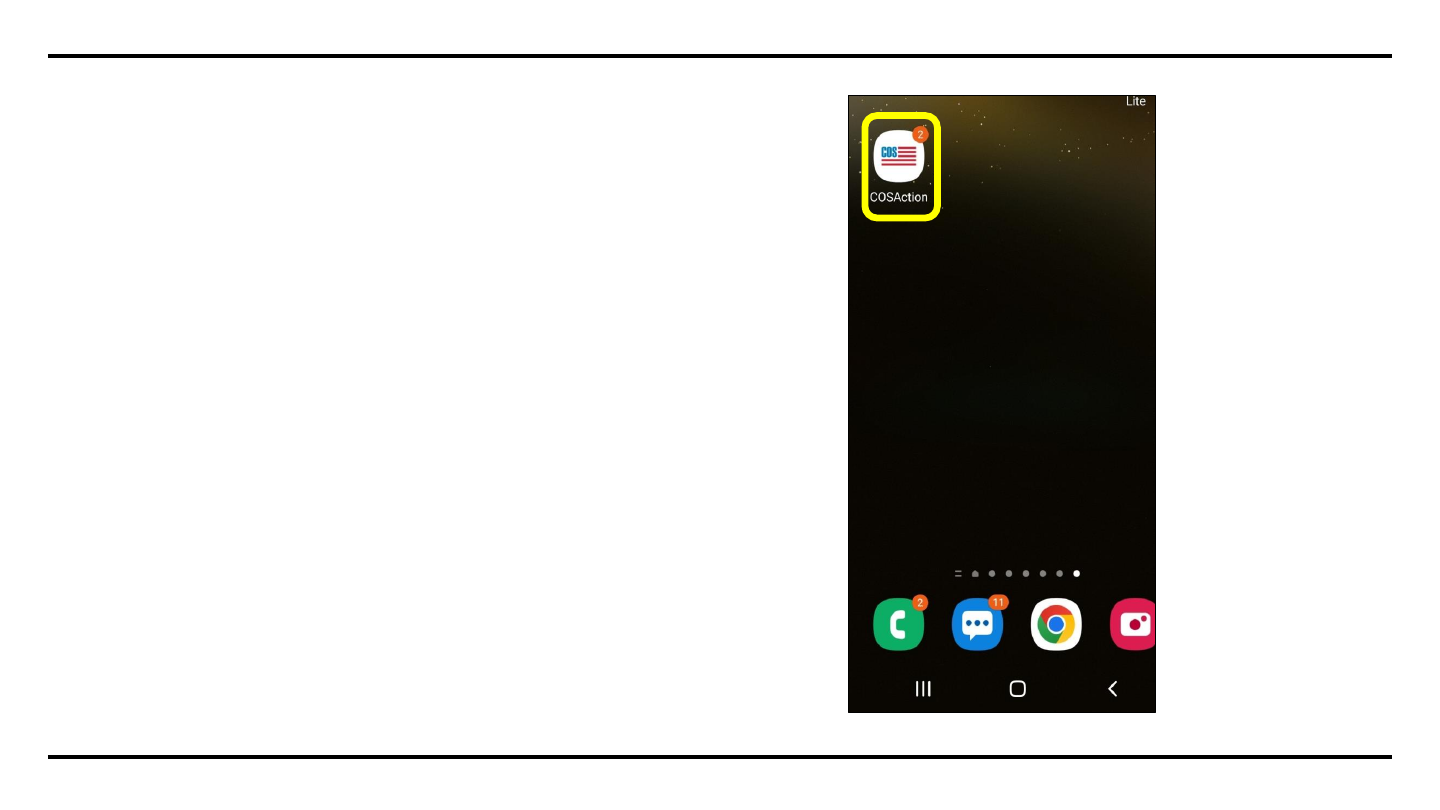
The Tool
TelePatriot App on your Phone
2
Android Edition

TelePatriot Missions are one
way we can influence the
PROCESS
School Board Elections
–
Get Out the Vote (GOTV)
–
Support to Legislators
Call your legislator to support COS Mission
3
Android Edition
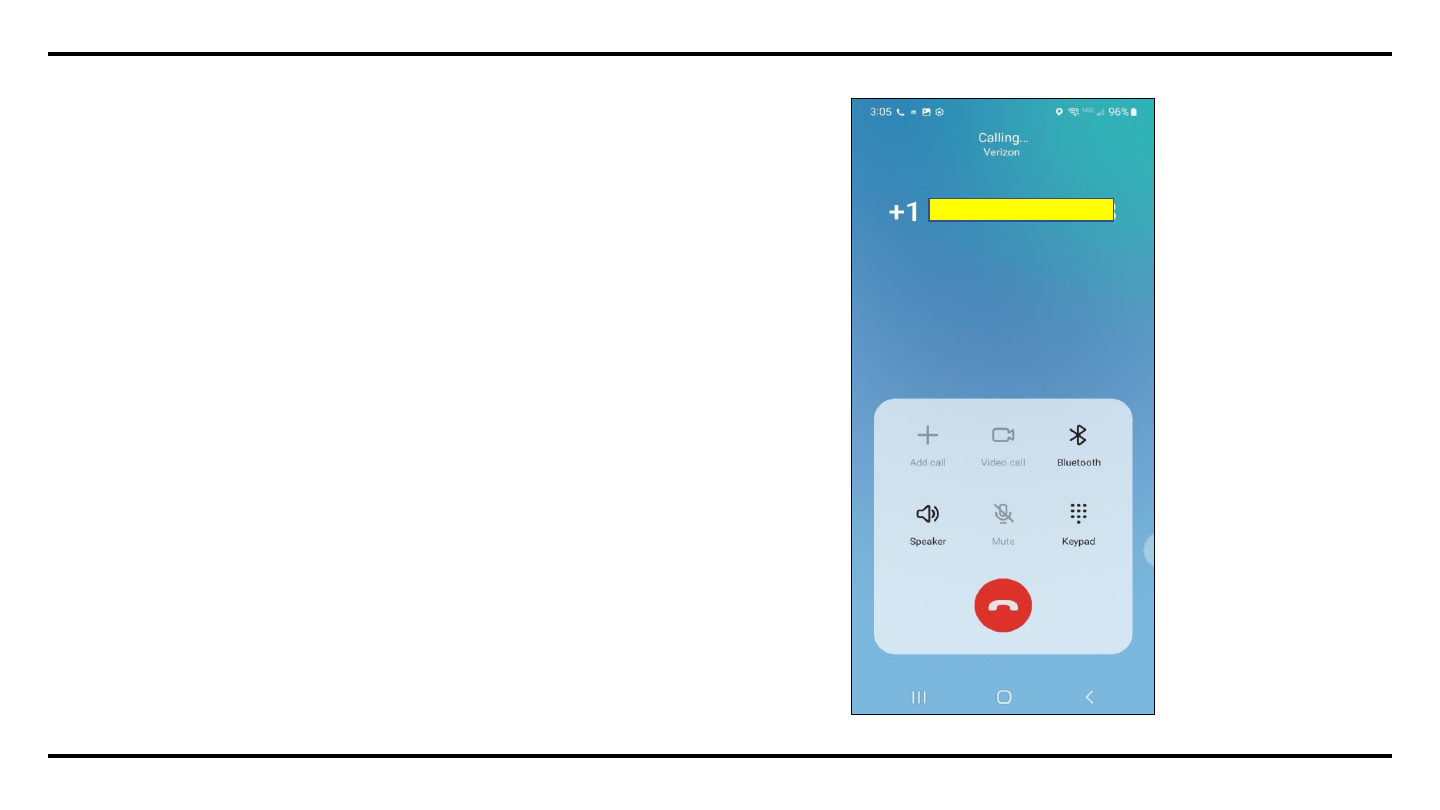
The Call
The Easiest Part of all!
4
Android Edition
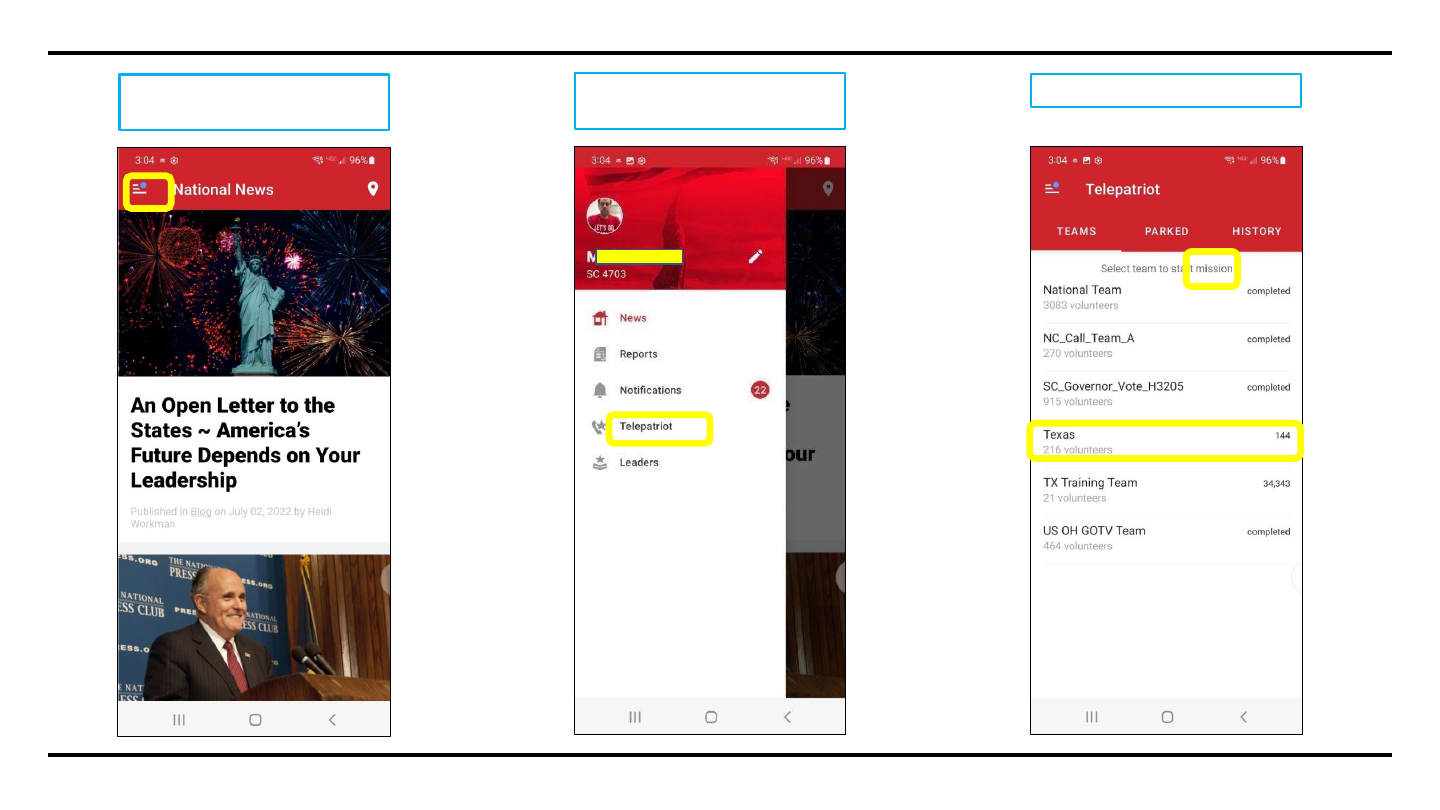
This is the screen you will see
when you open the COSA App.
Once app is opened, Click on
‘
TelePatriot
’
Select your ‘mission’.
1
2
3
5
Android Edition
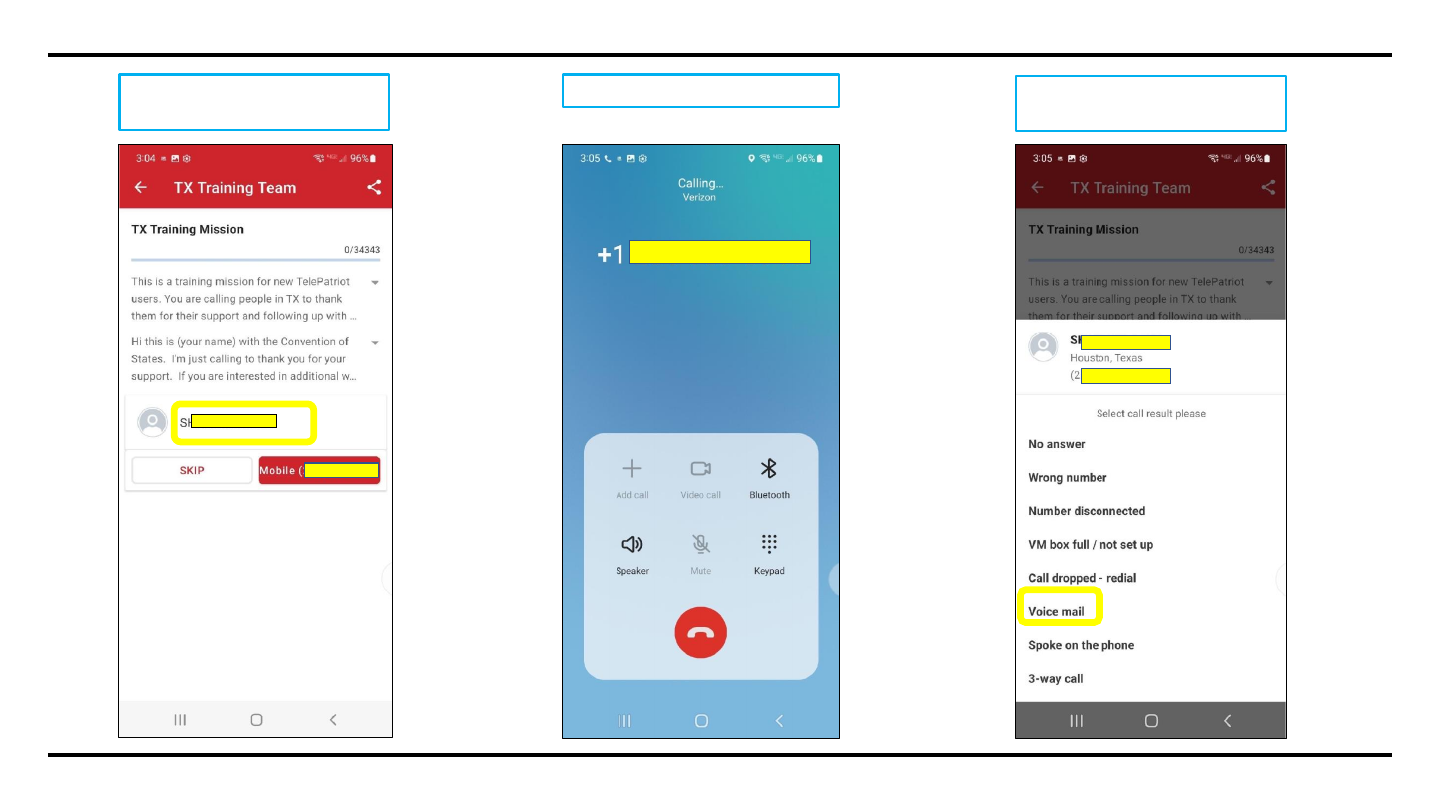
You will see your script and the
person you are calling.
Make your call.
When you finish your call, select
the appropriate response.
4
5
6
6
Android Edition

You will see your response.
This is your call summary screen
when you leave a voicemail.
7
8
9
Call summary with the Voicemail
update. Click 3-upright bars at the
bottom to go back.
7
Android Edition

The Follow up
▪
There are ways to provide Follow up
–
a voice mail is left in conjunction with the
call when you reach the voice mail instead of a person.
▪
To send the other Follow up, go back to History and select the number you wish
to send follow up to. This can be done one call at a time or multiple calls at once
after you have left your messages/spoken to people.
▪
When you click on the number, you will see the Add Follow up Message - Email
or Text.
8
Android Edition
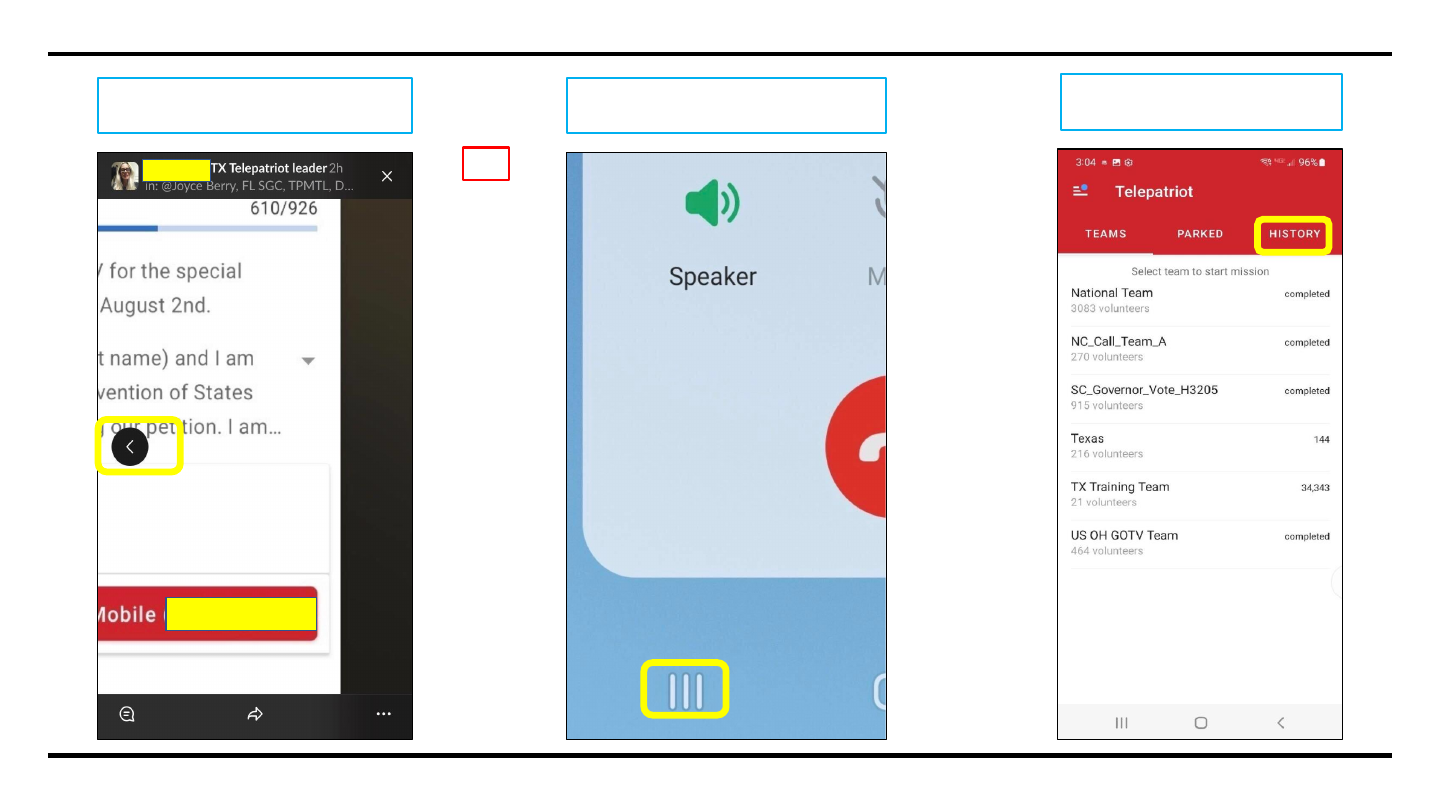
Select ‘History’ to add Follow
-up to
your call.
10
11
12
Use the triple-bar the bottom to return
to the script in the COSA app.
Use the side arrow to return to the
script in the COSA app.
OR
9
Android Edition

From this screen, select ‘Add
Follow-
up’
Select the person you wish to add
follow-up to by clicking on their
name.
Click on ‘Send Email’ and then
Click ‘pre
-
formed’ below to send
an email.
13
14
15
10
Android Edition
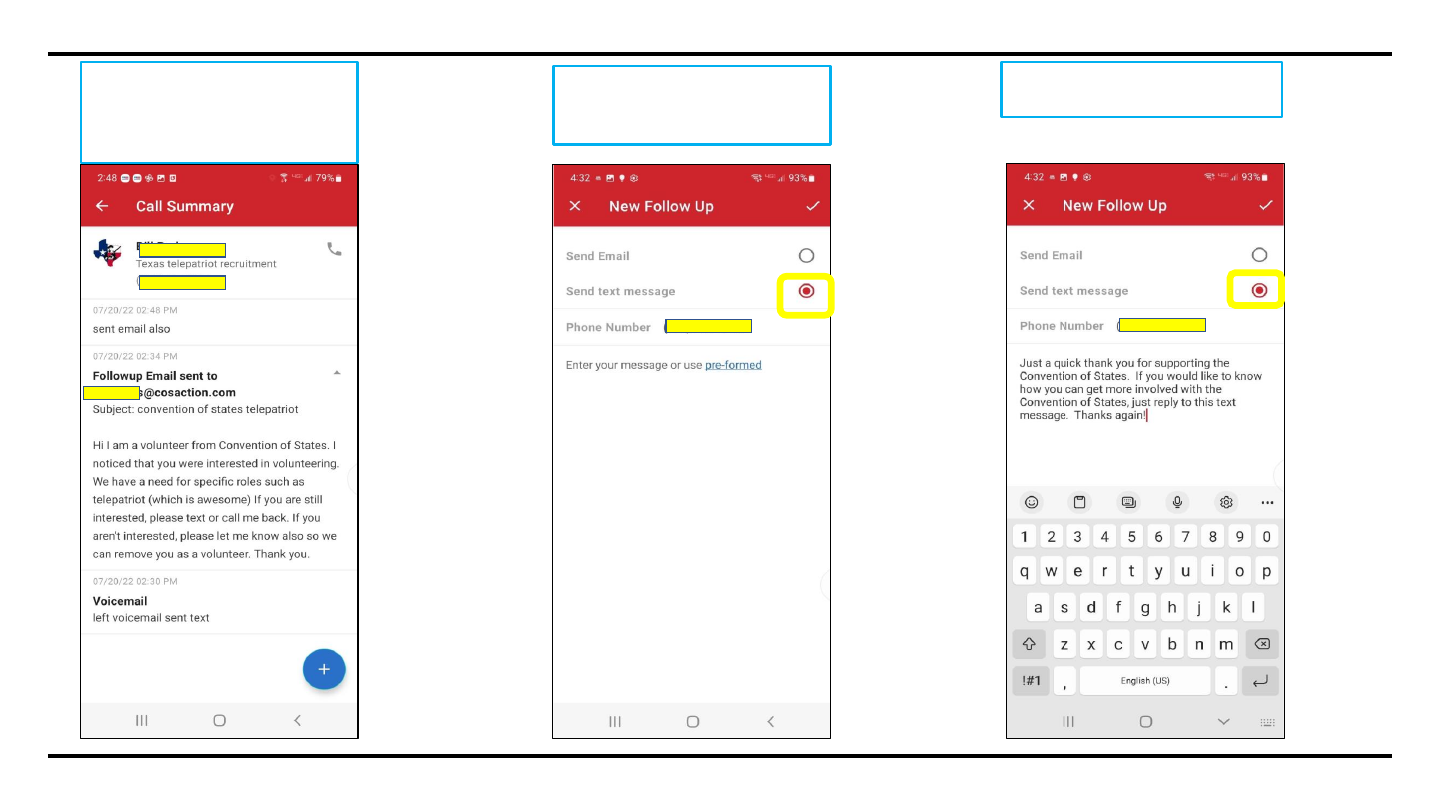
Select ‘Send text message’ and
then ‘pre
-
formed’ below to send
text message.
This is the text you will send. Click
the ‘send’ arrow.
16
17
18
Call Summary demonstrating the
email and the voicemail. Click the
arrow to return to ‘New Follow
up’.
11
Android Edition

This is the text you will send. Click
the ‘send’ arrow.
19
12
Android Edition

TelePatriot Housekeeping
•
Be kind to other TelePatriots
13
Android Edition

General Housekeeping Rules
•
Make your notes clearly state your communication intent
•
Unless the mission requests two attempts, remove from queue if
the user is busy, not available or no answer
14
Android Edition

Tags
•
Tags are required for some missions
•
If a tag is required, select ‘Assign tags’
•
Select Tag Number
15
Android Edition

20
Remove from queue…
21
22
Click on the tag number to select.
If a tag is required select ‘Assign
Tags’
16
Android Edition

Success!!!
•
You have DONE it! You have made a TelePatriot Call!
17
Android Edition|
—-
| Page Metadata ||
|Login Required to view? |No |
|Created: |2022-09-15 03:18 GMT|
|Updated: |2023-09-15 03:00 GMT|
|Published: |2022-09-15 05:00 GMT|
|Converted: |2025-11-11 12:24 GMT|
|Change Author: |Jonathan Viaud |
|Credit Author: |Joyce Berry |